REA with Ghidra, IDA or Hopper: Which Backend to Pick and How to Set It Up (2026)
Choose and set up REA's native backend: Ghidra (free), Hopper (demo/commercial) or IDA. Requirements, OS support, environment variables, timeouts and provider selection, from official docs.
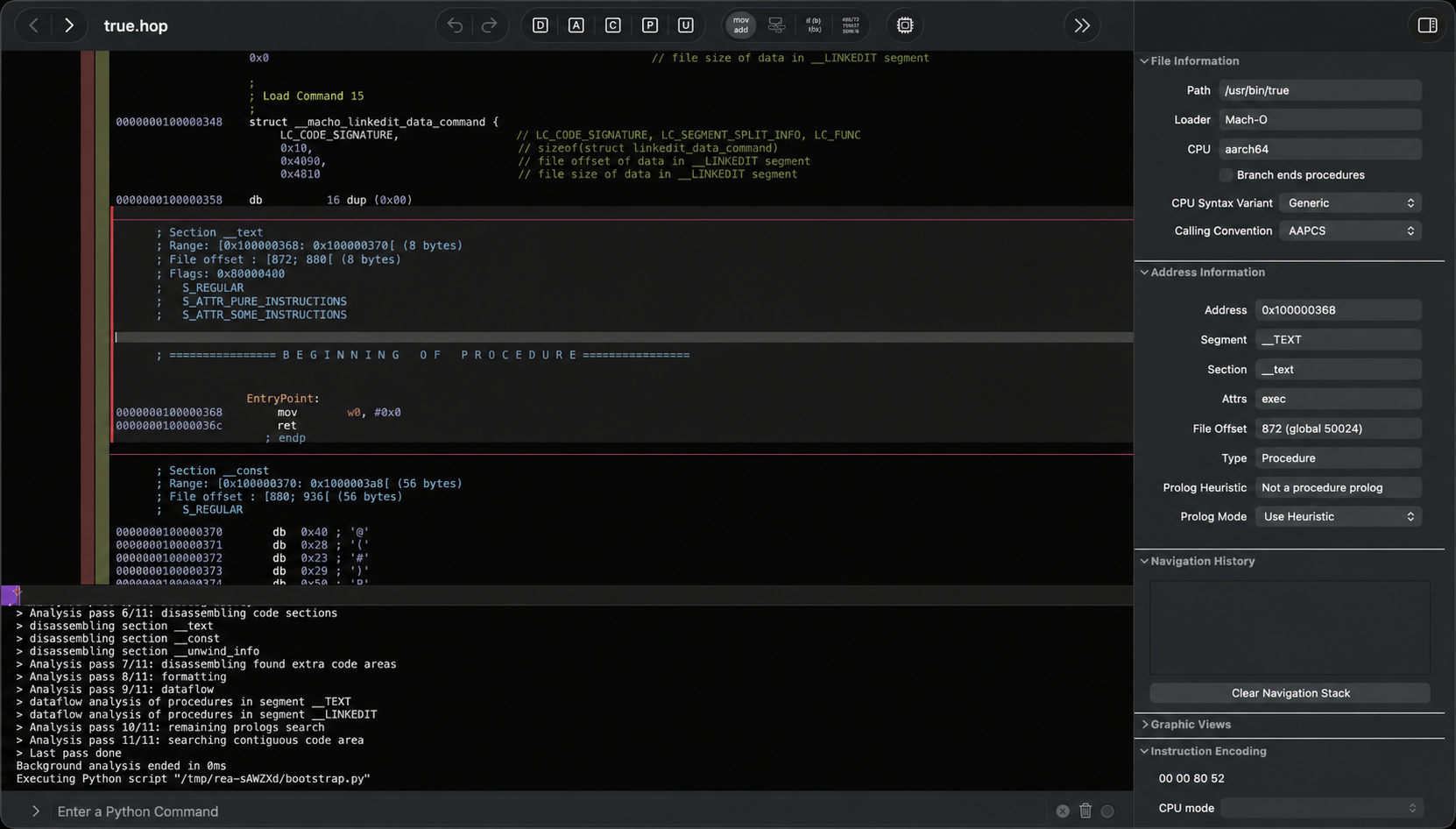
Short version: REA doesn't include its own decompiler. For native binaries (ELF, Mach-O, PE), it drives a disassembler you already have: Ghidra (free, open source), Hopper (commercial, free demo, setup can install it for you on macOS/Linux) or IDA (through an existing IDA MCP server). JavaScript/Electron, .NET and many other targets need no backend at all.
If REA isn't installed yet, follow How to install REA and connect it to Claude Code, Codex or Cursor first. For the project's background, see What is REA?.
Do you even need a backend?
| What you're analyzing | Backend needed? |
|---|---|
JavaScript / Electron (folder or .asar) |
No. Node.js and npm only |
| .NET assemblies (metadata, CIL) | No (static only) |
| Go build metadata | No (built-in) |
| Websites | A Chrome-family browser |
| Android APKs | Headless JADX plus a full JDK (not Ghidra/IDA) |
| Native binaries: pseudocode, assembly, xrefs | Yes: Hopper, Ghidra or IDA |
(Source: "What you can analyze" table in the REA README.)
Which backend should you choose?
| Ghidra | Hopper | IDA | |
|---|---|---|---|
| Cost | Free, open source (NSA) | Commercial. Free demo with vendor limits | IDA Pro is paid. IDA Free exists, with limits |
| Does REA install it? | No. You install Ghidra and a JDK | Yes, optionally, after you approve (macOS, supported Linux) | No |
| Version REA expects | Ghidra 12.1.x (verified with 12.1.4) plus a 64-bit JDK 21+ | Existing or setup-installed Hopper | Upstream IDA MCP server (see below) |
| OS | Linux x64/arm64, macOS x64/arm64, Windows x64 (experimental, read-only) | macOS, supported Linux. Not Windows | Depends on your IDA install |
| How REA runs it | Headless, temporary read-only project, deleted afterward | Launches Hopper. Linux demo runs on a private Xvfb display | Adapts a running IDA MCP server (GUI-attached or headless idalib) |
| Good for | Free, scriptable, cross-platform. Windows users | Mac users who want the quickest guided setup | People who already own and use IDA |
Rule of thumb: on Windows, use Ghidra (it's the only native backend REA supports there, and it's experimental). On a Mac, try Hopper's demo through setup or use Ghidra. If you already pay for IDA, connect it.
REA's README is clear that you must legally obtain commercial tools like IDA Pro, Hopper and JEB. REA gives you no license or key, and cracked copies aren't authorized.
Option A: Ghidra (free)
- Download and extract Ghidra 12.1.x from the official NSA Ghidra release page, and install a 64-bit full JDK 21+. REA never installs either one.
- Point REA at them with absolute paths:
export GHIDRA_INSTALL_DIR=/absolute/path/to/ghidra_12.1.4_PUBLIC
export JAVA_HOME=/absolute/path/to/jdk-21   # optional if java/javac are on PATH
rea doctor --json
rea setup
On Windows (PowerShell):
$env:GHIDRA_INSTALL_DIR = "C:\tools\ghidra_12.1.4_PUBLIC"
$env:JAVA_HOME = "C:\Program Files\Java\jdk-21"
rea doctor --json
rea providers --json
Running rea setup after this saves the verified Ghidra/JDK paths into your agent's REA registration, so GUI agents don't depend on your shell's PATH.
- Test it on a program you built yourself:
rea analyze /absolute/path/to/program --provider ghidra --json
rea decompile /absolute/path/to/program 0x1000 --provider ghidra --json
Ghidra tips from the docs:
- Large binary timing out? The default startup deadline is 330,000 ms (import plus auto-analysis). Raise it with
REA_GHIDRA_STARTUP_TIMEOUT_MS. Your MCP client's own tool-call timeout also has to be long enough. - Memory: the JVM heap defaults to
2G. SetGHIDRA_HEADLESS_MAXMEM(for example512Mor4G) in the environment that launches the REA server. - Missing native decompiler on macOS:
rea doctorreportsnative_decompileras missing. The docs give amake ghidra_optrecipe for Ghidra 12.1.4 (on Apple Silicon, addARCH_TYPE="-arch arm64" OSDIR=mac_arm_64). - Analyzer stalls on Swift/Objective-C arm64: for example
export REA_GHIDRA_DISABLED_ANALYZERS="Objective-C Message Analyzer". - What's exposed: 25 read-only operations (inventory, decompile, xrefs, dossiers and more). On Linux/macOS you can also rename functions and add comments for the session only. Executable bytes are never changed.
Option B: Hopper (guided install)
Run npx rea-agents setup and accept the separate Hopper step. On macOS, setup downloads the official DMG, checks its size and digest, and installs it to ~/Applications/Hopper Disassembler.app. Then it opens Hopper so you can pick demo mode or activate a license you already own. On supported Linux distros it verifies Hopper's official .deb/.rpm/Arch package and runs the demo on a private Xvfb display.
Things to know:
- macOS: finish Hopper's first-run demo/license dialog in the same user session before your first REA operation.
- REA starts Hopper when it needs it, so you don't have to launch it yourself.
- Custom location:
export HOPPER_LAUNCHER_PATH=/absolute/path/to/Hopper, thenrea doctor --provider hopper --json. - Big targets: raise
REA_HOPPER_STARTUP_TIMEOUT_MS(the default is 120,000 ms). - On Linux, REA allows one Hopper application per user, so a second session gets told which session already owns it.
Option C: IDA (existing install)
REA doesn't bundle an IDA server. It adapts an existing IDA MCP server:
- IDA Pro: profiles built on mrexodia/ida-pro-mcp. Either attach to an open IDA GUI (legacy 1.4.0 tools) or use headless idalib with the upstream database-supervisor API.
- IDA Pro or IDA Free: an optional native bridge through the separate
ida-free-mcpplugin (experimental). The docs warn that its 1.1.2 release binds0.0.0.0, so firewall it.
Setup steps from the IDA guide:
- Install and configure IDA and the upstream MCP server using their instructions.
- Save that server's registration (
command,args, optionalenv) as a JSON file. - Point REA at it and select IDA:
export REA_IDA_MCP_CONFIG=/absolute/path/to/ida-mcp.json
export REA_ANALYSIS_PROVIDER=ida
rea function /absolute/path/to/program main --json
Open the original binary in REA, not the .idb/.i64. Its SHA-256 has to match the input hash IDA recorded. IDA Free's cloud decompiler needs network access, which matters for privacy (see our FAQ).
Several backends installed? Pick one explicitly
rea providers --json
rea analyze /absolute/path/to/program --provider hopper
Or set REA_ANALYSIS_PROVIDER as a standing default. In an MCP session, the agent passes provider_id to open_binary. An ambiguous error means more than one engine fits the target, so choose one. provider_unavailable means run rea doctor --provider ID --json.
Next: put it to work on an app you own, or see how REA compares with GhidraMCP and IDA Pro MCP.
Facts and commands in this guide come from REA's official README and docs on GitHub (repository morluto/rea, npm release 6.4.0 checked by the project on 2026-10-11) and rea.tools. REA changes quickly. If something here doesn't match what you see, trust the current docs.
More in this REA series
- Background: What is REA? Timeline, the Adobe/Excel clone confusion and legal stakes
- How to Install REA and Connect It to Claude Code, Codex or Cursor (Step-by-Step, 2026)
- REA Tutorial: Analyze an Electron App, .NET DLL or Android APK You Own With Your AI Agent (2026)
- REA vs GhidraMCP vs IDA Pro MCP vs Binary Ninja MCP: AI Reverse-Engineering Tools Compared (2026)
- REA Troubleshooting and FAQ: Common Errors, Token Cost, Privacy and Staying Legal (2026)
- Legal context: Is reverse engineering games legal?
← Back to all posts